

client portal talk to us
News

Setting Defaults for the Level 2 Window on the Sterling Trader® Pro Platform

Apr 18th, 2019

Share this

Setting Defaults & Layouts enables traders to be as effective and efficient as possible. Selecting and updating settings are quick and easy.
SETTING A DEFAULT DESTINATION:

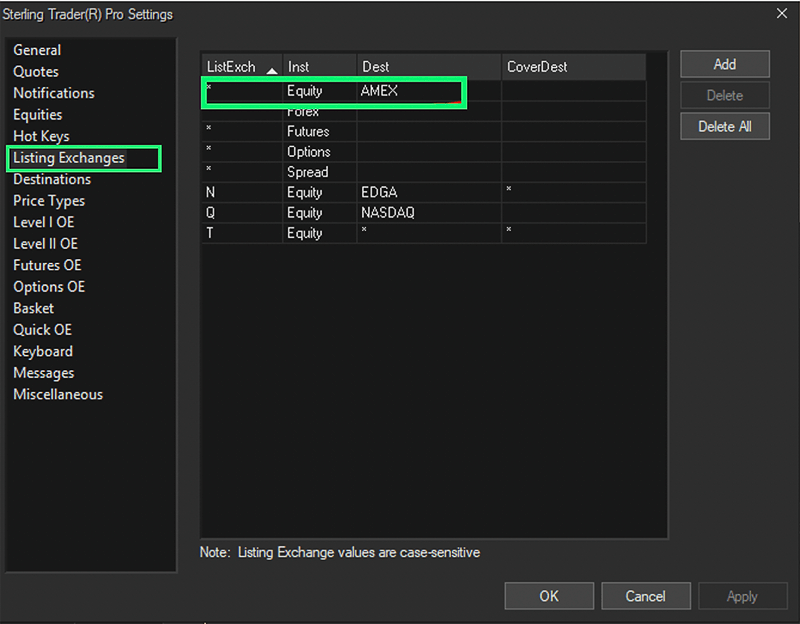
To set a default destination, go to the Main Toolbar > View > Settings > Listing Exchanges Set the destination in the top line to be the default destination.

SETTING A DEFAULT ACCOUNT:

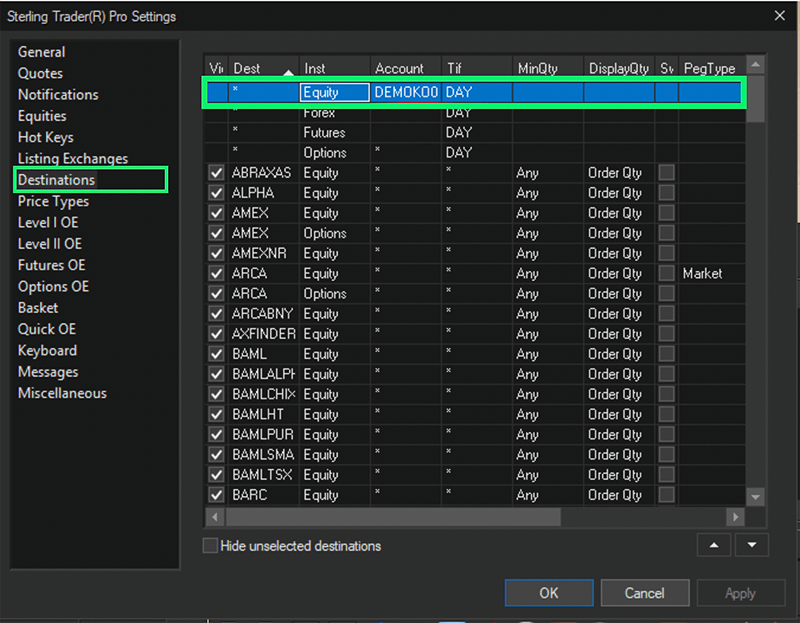
To set the default account, go to the Main Window > View > Settings > Destinations Set the account in the top line next to Equity.

SETTING DEFAULT QUANTITY & PRICE TYPE:

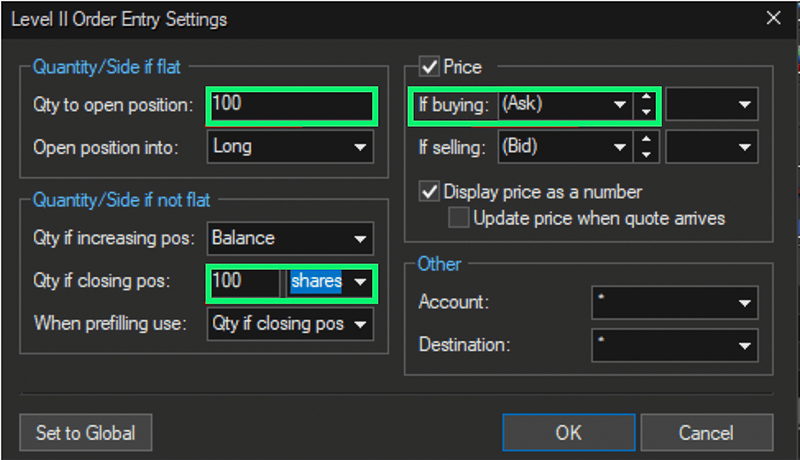
To set the default quantity and price type, go the Level 2 Window > View > Local Order Entry Settings

PREVENT LEVEL 2 WINDOW FROM RESETTING AFTER EVERY ORDER:

To prevent the Level 2 Window from resetting after every order, go to the Main Toolbar Window > View > Settings > Level 2 OE. At the bottom on the right you will see Prefill Settings.

Make sure the following two fields are set to: Leave all fields unchanged
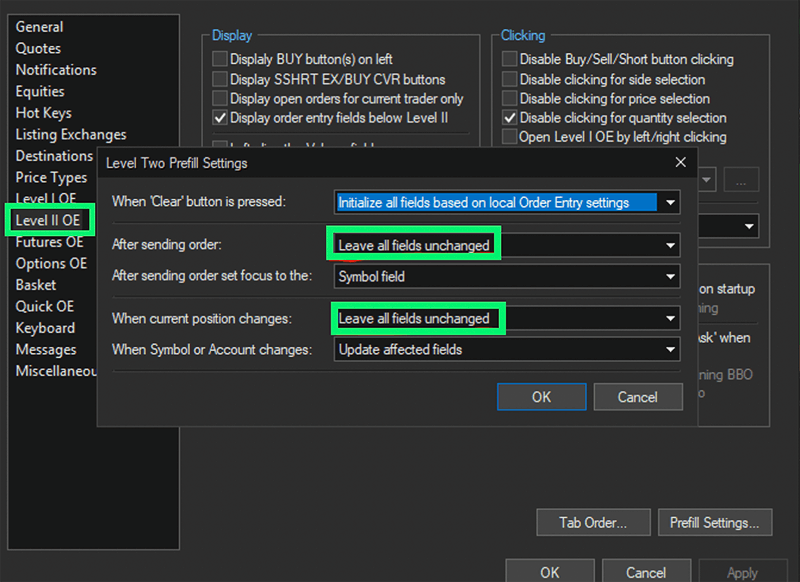
  • After sending order
  • When current position changes

Ready to get started?

We look forward to learning more about your trading needs.

Find My Solution

Check out some more resources

White Papers

Market Asymmetry Before It Moves You

In today’s markets, sharp price moves rarely come out of nowhere. They build quietly ...

News

Sterling OMS 360: A New Era in OMS

The newly launched OMS provides the only real-time margin and multi-asset capability during ...

Blog Entries

The Intersection of Pre- and Post-Trade Risk

Effective risk management is paramount in today's fast-evolving financial landscape. Firms ...

 

PT

PM

Ok